

Eval
Run an AutoEval
Start a model comparison over your live traffic, from integration to a completed run.
AutoEvals sample your recent production traffic, replay each sampled turn against a set of candidate models, score every result with LLM judges, and publish a model recommendation with supporting evidence. You do not build a dataset or write a rubric.
In the dashboard, AutoEvals appear as the Compare Models tab on each task and agent. This page covers everything up to a completed run. For reading the report, see Interpret the Results.
Prerequisites
A run is always scoped to one entity: a Gateway task or a traced agent. That scope is where the run samples its traffic, so you need one of these integrations first:
| Scope | Integration | What gets sampled |
|---|---|---|
| Task | LLM calls routed through the Gateway | Successful recorded requests for that task. Requests without a task ID group under the Default task. |
| Agent | Traces reported from your app | Successful LLM spans captured for that agent. |
There is no minimum traffic requirement to start a run manually, but the sample can only be as representative as the traffic in the window you pick.
Where to find it
- Tasks: Gateway → Tasks, open a task, select the Compare Models tab.
- Agents: Agents, open an agent, select the Compare Models tab.
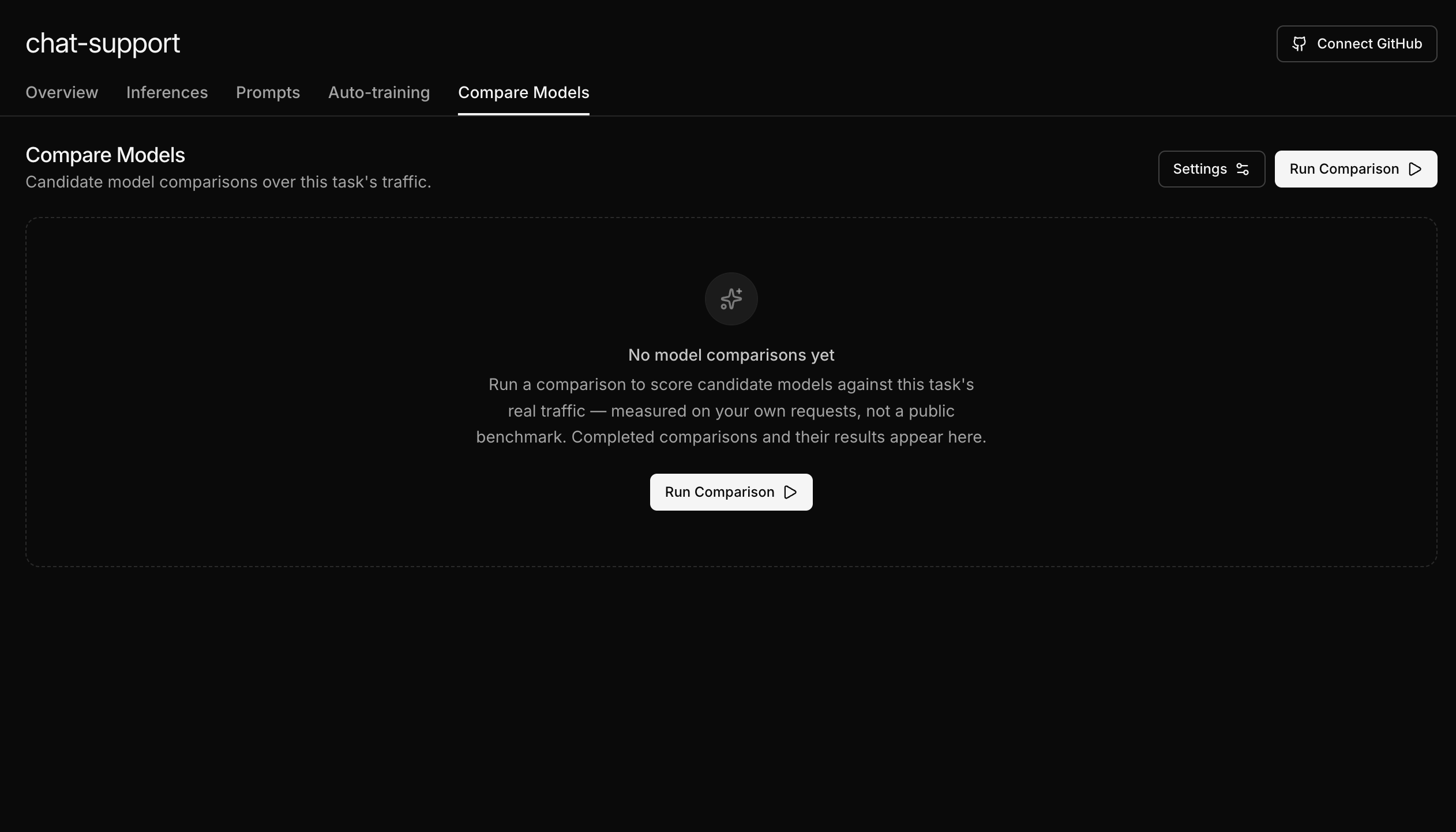
The tab lists every comparison for that scope with its creation time, status, and source (Manual runs show who started them, Automated runs are scheduled by the platform). Click View run to open any report.
Start a run
Click Run Comparison to open the comparison dialog.
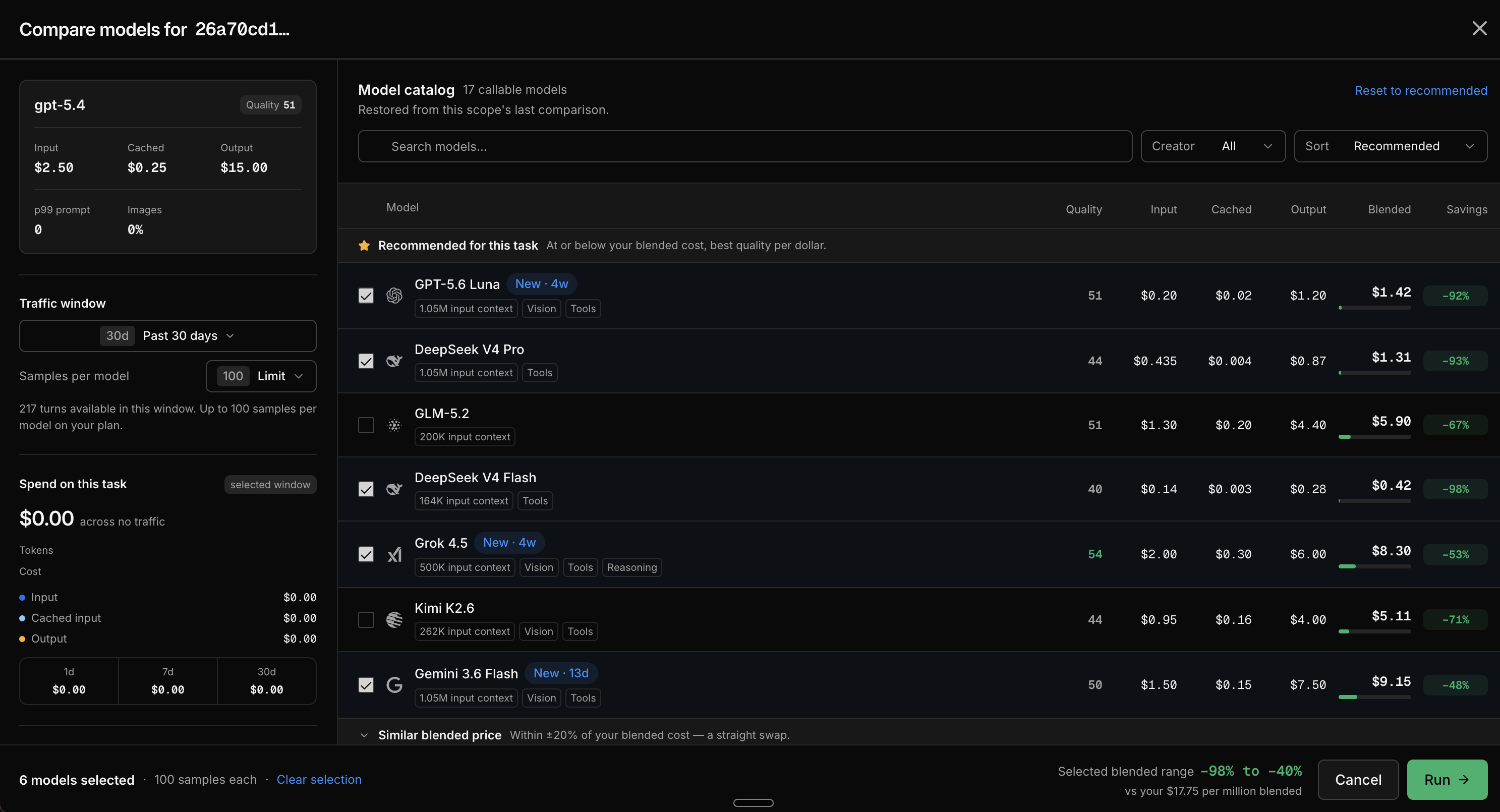
The dialog has three parts:
Current model and spend
The left panel shows the model you run today: its per-token pricing and your recent spend on this task across 1, 7, and 30 day windows. This is the baseline every candidate is compared against.
Traffic window
- Traffic window: the window to sample from. Presets range from 1 hour to 30 days, and 30 days is both the default and the maximum. The panel shows how many turns are available in the window.
- Samples per model: how many turns to sample, up to 100 (the default). Fewer samples make the run cheaper and faster, at the cost of statistical confidence.
Model catalog
The catalog lists every callable candidate model with its quality score, per-token pricing, blended price, and projected savings against your current model. Models are grouped by how their blended price compares to yours, and the models recommended for your task (at or below your blended cost, best quality per dollar) come pre-selected.
Check or uncheck models to set the candidate list. Your selection is saved per task or agent and restored on the next run; Reset to recommended returns to the default set. The left rail shows the blended savings range of the current selection, and the footer shows how many models are selected.
If the run's estimated eval cost exceeds your team's credit balance, the dialog warns Not enough credits to start this run. Add credits or reduce the sample count and enabled models.
Click Run Comparison. The dialog closes and takes you straight to the new run's report.
While the run executes
The report shows an Analysis in progress card with a three-step pipeline. Results fill in as models finish scoring.
| Stage | What happens |
|---|---|
| Sampling traffic | Inference platform pins a deterministic sample of the scope's requests. |
| Scoring candidate models | Every candidate re-runs the samples and is judged. |
| Generating insights | An analysis agent summarizes the eval results into a verdict, summary, and insights. |
Per-model results appear below the pipeline as each model finishes: how many samples it completed, and any failures.
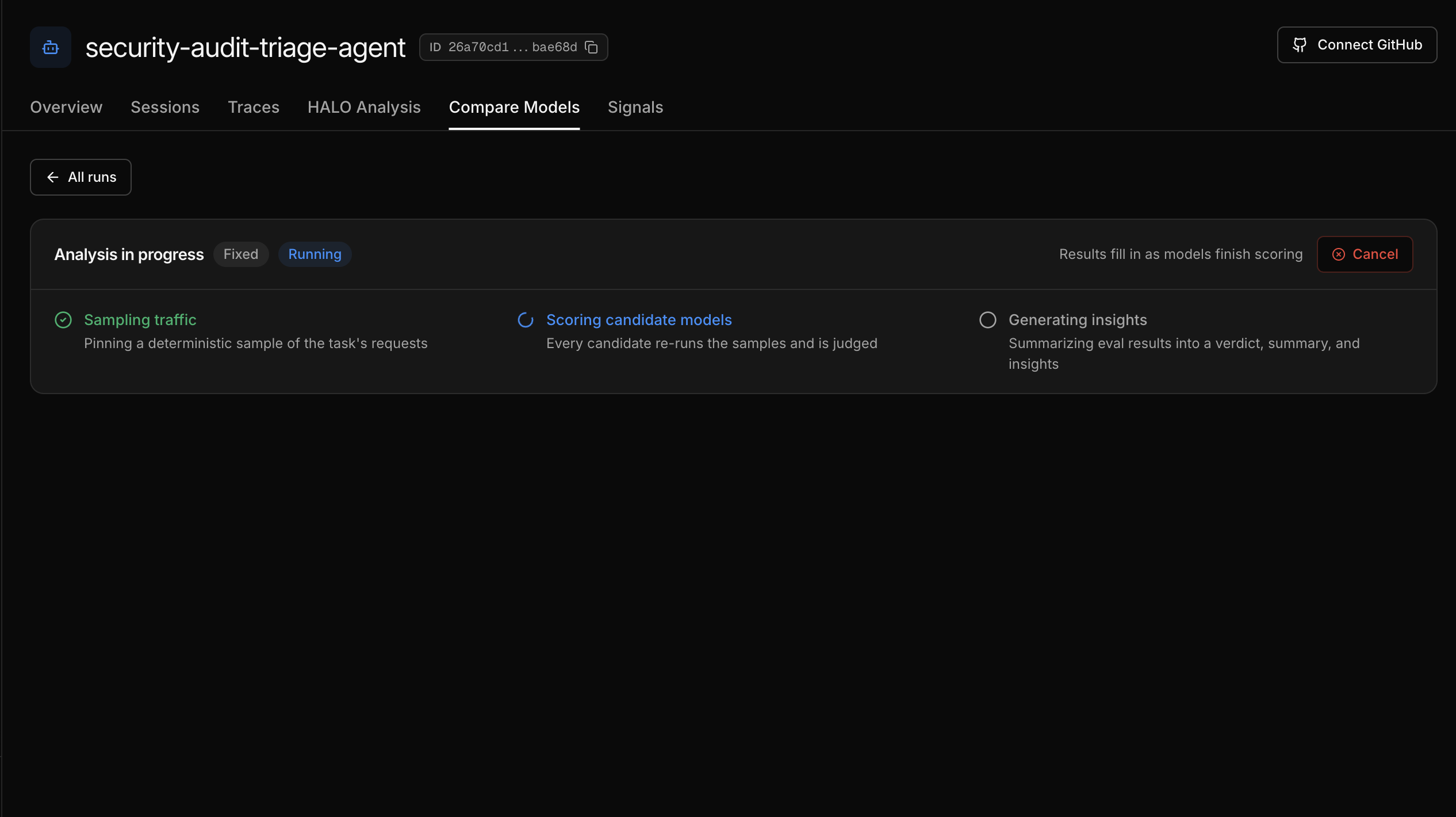
You can Cancel a run while it executes. Cancelling stops sampling, scoring, and insight generation, and marks the run as cancelled. Scoring already in flight may take a moment to settle.
When the run finishes, Inference platform sends an email or Slack notification with the headline result and a link to the report.
How a run works
Sampling
Inference platform draws up to your Samples per model count of individual assistant turns from the window. Sampling is recency weighted, so newer conversations are more likely to be picked, and deterministic, so the same configuration reproduces the same sample. Each conversation contributes at most 5 turns, spread across the early, middle, and late parts of the conversation. The pinned sample is saved as an eval dataset, so you can inspect exactly what was judged.
Scoring
Each sampled turn is replayed against every candidate model: the conversation up to that turn, with the same tools available, is sent to the candidate, which produces its own version of the response. LLM judges then score every response against two fixed rubrics:
| Rubric | What the judge sees | Score |
|---|---|---|
| Action quality | The conversation and one response, graded blind. The judge never knows which model wrote it, and never sees the alternative. Your original production responses are graded the same way, as the baseline. | 1 to 10 |
| Behavioral similarity | The candidate's response next to your original response, plus similar excerpts from the rest of the sample. Measures how closely the candidate matches your current behavior. | 1 to 10 |
Blind grading matters: judges shown two responses side by side tend to favor the incumbent. Grading each response in isolation removes that bias. Each rubric uses a judge model pinned by the platform; the eval viewer shows which judge scored each rubric.
Recommendation
Once the scores settle, an analysis agent reviews the scored results together with the sampled conversations. It writes the run summary, picks the model recommendation (weighing quality, cost, and latency, and allowed to conclude "keep the current model"), and records insights about problems it found in the traffic.
Candidate models
Runs compare your traffic against candidate models from the catalog (GPT, Claude, Gemini, Grok, DeepSeek, GLM, Kimi, Nemotron, Qwen, and others). The recommended set — the models at or below your blended cost with the best quality per dollar — comes pre-selected. Use the checkboxes in the run dialog's model catalog to set the candidate list per task or agent.
Automatic runs
Inference platform can start your team's first comparison automatically. Automatic runs are available on Growth and higher plans, and start once a task or agent accumulates enough recent traffic (about 1,000 requests in the trailing 7 days). An automatic run shows Automated as its source and a Free run badge: its eval cost does not use your team credits.
After the first automatic run, you start runs yourself with Run Comparison.
Cost and limits
The judge and replay calls in the scoring stage bill as normal eval usage from your team credits, gated by your credit balance at launch and the platform's concurrent-run limit. With the default 100 samples and all candidates enabled, a full run requests roughly 3,500 eval samples: every candidate plus your baseline is graded for quality, and every candidate is graded for similarity.
To reduce a run's cost, lower Samples per model or deselect candidate models you would not switch to.
If your credit balance would not cover the run's estimated eval cost, the run is refused with Not enough credits to start this run — add credits or shrink the selection.
The sampling and analysis stages are included; you are not billed for the analysis agent.