

Train
Launch a Training Run
Start a training job from the dashboard — select your datasets and a recipe, then start training.
Once you have your prerequisites ready, launching a training run takes a few minutes.
This guide shows the manual path. If you do not want to manage datasets and deployment, AutoTrainer does these steps automatically from your live traffic.
Start a new job
Go to Fine-tuning in the dashboard sidebar and click New Training Job.
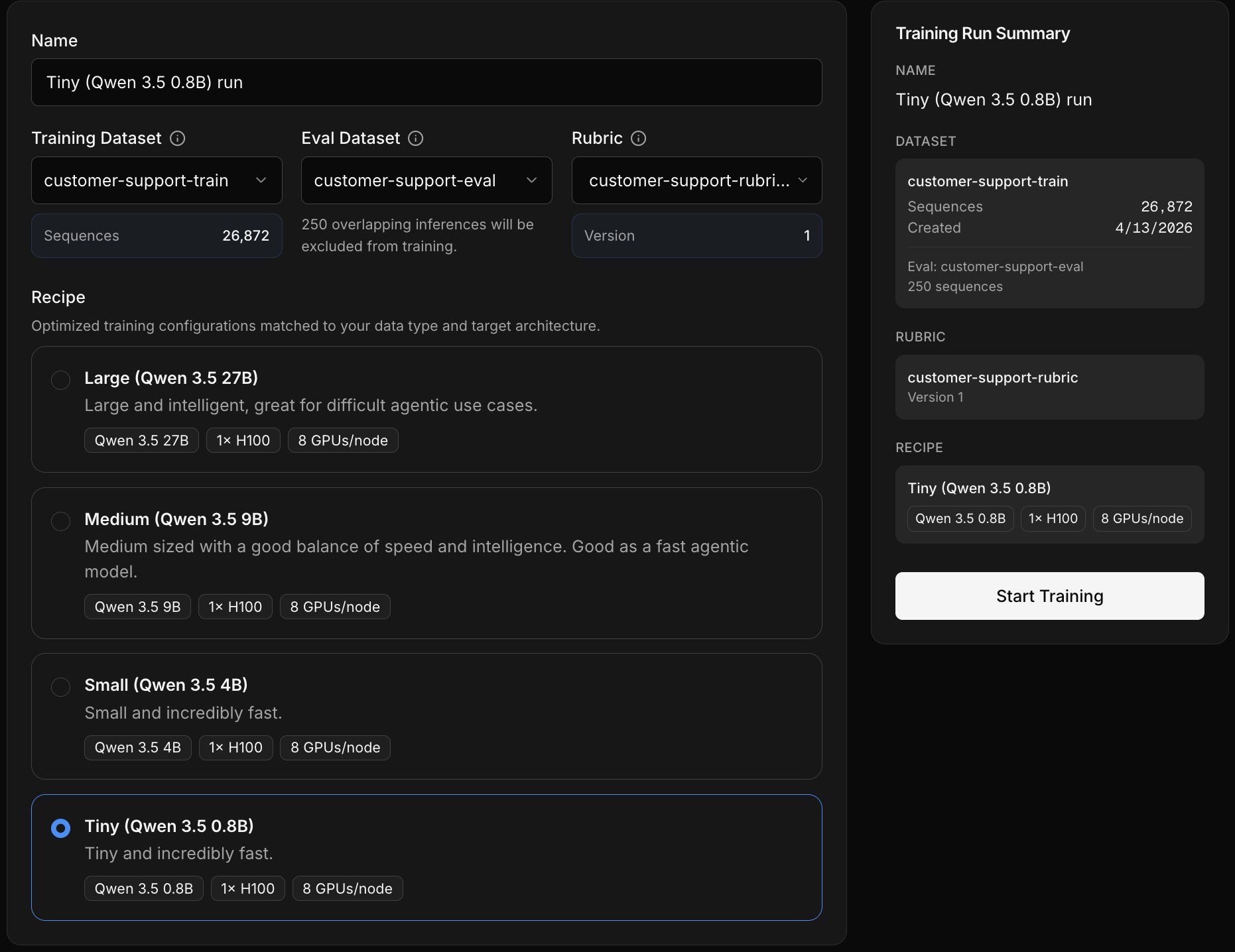
Select a training dataset
Choose the dataset the model will learn from. You can build a dataset from live traffic, upload a JSONL file, or use task tags to filter captured traffic for clean, focused samples.
Select an eval dataset
Choose the dataset used for evaluations throughout training. Must have zero overlap with training data. The platform judges the model against a default rubric automatically.
Select a recipe
Choose a recipe based on task difficulty and capability needs.
Start training
Review your selections and click Start Training to queue the job.
Training job lifecycle
Once started, your job moves through these statuses:
| Status | What's happening |
|---|---|
| Exporting datasets | Your training and eval data is being prepared |
| Queued | Job is waiting for available compute |
| Starting | GPUs are being allocated and the training environment is initializing |
| Running | The model is actively training |
| Cycling | The run is rolling over to a new provider instance |
| Completed | Training finished successfully |
If something goes wrong, the job will show one of these:
| Status | What it means |
|---|---|
| Failed | Something went wrong — check the logs on the training details page |
| Cancelled | The run was cancelled |
| Timed out | The run exceeded the maximum allowed duration |
Training can take anywhere from around 10 minutes to 10+ hours depending on dataset size and recipe. Once running, monitor progress from the training details page.
How training is scored
At each checkpoint, the platform runs your eval dataset through the model-in-progress and an LLM judge scores the outputs against built-in quality and similarity rubrics. Mid-training evals use those scores to decide when the model has learned enough, and when to stop early to prevent overfitting.
The eval dataset drives this: pick a small, stable set of hard examples that stress-test the model, and keep it disjoint from your training data. If a model trains on eval examples, the eval becomes meaningless.